
Instant Mode Access Point CLI
Section titled “Instant Mode Access Point CLI”To verify the configuration on the HPE Aruba Networking side, connect to the HPE Aruba Networking access point using SSH or the local console.
- Check if <deviceClass> BLE devices are seen by the APs BLE radio using the command show ap debug ble-table generic:
ArubaInstantAP# show ap debug ble-table generic

BLE Device Table [Generic]---------------------------MAC                Address Type  RSSI  Last Update  Device Class  Generic Filter  BT-SIG Company IDs---                ------------  ----  -----------  ------------  --------------  ------------------60:c0:bf:60:de:0b  Public        -77   I:5s         iBeacon       --              0x004C60:c0:bf:61:0e:bf  Public        -43   I:3s         iBeacon       --              0x004C
Generic BLE devices:2Total BLE devices:2
Note: Battery level for LS-BT1USB devices is indicated as USB.Note: Uptime is shown as Days hour:minute:second.Note: Last Update is time in seconds since last heard update.Note: Meas. Pow. is the averaged RSSI (in dBm) when the iBeacon is calibrated.Note: Tx_Power is shown in dBm in the APBs section for radios that support radio profile type 1. For all other APB radios, Tx_Power is a discrete level from 0-15.Status Flags:L:AP's local beacon; I:iBeacon; A:Beacon management capable         :H:High power beacon; T:Asset Tag Beacon; U:Upgrade of firmware pending         :u:Beacon management update receivedGeneric Filter:S:serviceUUIDFilter; C:companyIdentifierFilter         :M:macOuiFilter; L:localNameFilter
If no <deviceClass> devices show up in the APs BLE table, check the following things:
- Are <deviceClass> devices in the range of the AP?
- Are the <deviceClass> devices switched on?
- Has the APs IoT radio been enabled with the settings shown in the configuration section?
- Has the device class <deviceClass> selected in the IoT transport configuration as shown in the configuration section?
- Check if the IoT transport connection to the HYPROS backend has been established using the commands:
show ap debug ble-relay iot-profile
show ap debug ble-relay report
ArubaInstantAP# show ap debug ble-relay iot-profile
ConfigID                                : 90
---------------------------Profile[hypros]---------------------------
serverURL                               : wss://<websocket-url>/<path>serverType                              : Telemetry WebsocketdeviceClassFilter                       : iBeacon, Eddystone, MinewreportingInterval                       : 600 secondauthentication-mode                     : noneaccessToken                             : <access-token>clientID                                : <client-id>rssiReporting                           : AverageenvironmentType                         : officebleDataForwarding                       : TRUEblePeriodicTelemetryDisable             : TRUEcompanyIdentifierFilter                 : 026Ccipher-list                             : standardServer Connection State--------------------------TransportContext                        : Connection EstablishedLast Data Update                        : 2021-10-21 13:52:03Last Send Time                          : 2021-10-21 13:52:03TransType                               : Websocket
ArubaInstantAP# show ap debug ble-relay report
---------------------------Profile[hypros]---------------------------
WebSocket Connect Status                : Connection EstablishedWebSocket Connection Established        : YesLocation Id                             : Not ConfiguredWebsocket Address                       : wss://<websocket-url>/<path>WebSocket Host                          : <websocket-url>WebSocket Path                          : <path>Vlan Interface                          : Not ConfiguredCurrent WebSocket Started at            : 2021-10-21 13:40:13Web Proxy                               : NAProxy Username&password                 : NA, NALast Send Time                          : 2021-10-21 13:52:54Websocket Write Stats                   : 277 (39080B)Websocket Write WM                      : 0B (0)Websocket Read Stats                    : 0 (0B)
If the websocket connection status show a different status than Connection Established use the following command to check possible connection issues:
show ap debug ble-relay ws-log <profile>
- If the connection status shows Connection Established but the communication seems not to be working correctly, use the following command to check message processing through the websocket connection:
show ap debug ble-relay tag-report
Note: Repeat the show command multiple times to see if message counters increase. The Tag messages dropped should not increase and show only a low amount of dropped packets compared to incoming and processed messages, e.g. in the 0.x % range.
ArubaInstantAP# show ap debug ble-relay tag-report
---------------------------Profile[hypros]---------------------------
Incoming Tag messages                   : 305Tag messages processed                  : 301Tag messages dropped                    : 4Tag messages WS queue success           : 301Tag messages WS queue unavailable       : 0Tag messages WS not connected           : 0Tag messages WS sent                    : 301Heartbeat messages WS sent              : 181
Central Instant Mode - Web Console
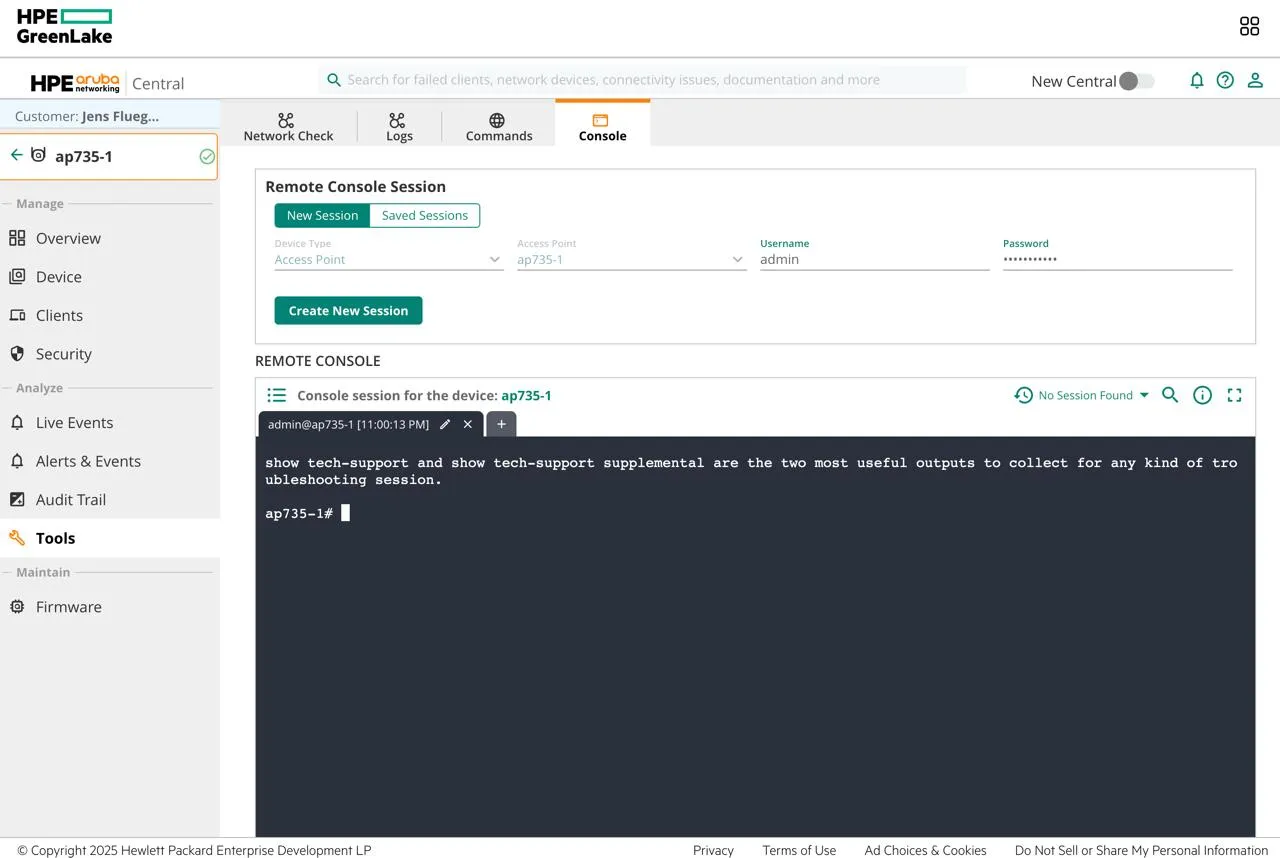
Section titled “Central Instant Mode - Web Console”As an alternative to connecting to the Access Point via SSH, the console can also be viewed using Central. Therefore, the console can be found at Tools > Console.
Common Causes of Connection Errors
Section titled “Common Causes of Connection Errors”- Trusted certificate chain for remote IoT server certificate not installed. Only applicable for secure connections (https://, wss://)
- Wrong authentication credentials for the remote IoT server connection (access token, username/password, clientId/secret)
- Domain name resolution not configured or not working e.g. DNS server not reachable
- Connection blocked by firewall or other devices in the communication path
Note: Starting with Aruba Instant 8.8 IoT server connections are automatically established even if no messages need to be sent to the remote server, e.g. because no BLE devices are seen by the HPE Aruba Networking AP.