The HPE Aruba Networking Central Instant Mode 8 configuration example shows the configurations steps for an HPE Aruba Networking Instant Mode 8 setup managed via HPE Aruba Networking Central.
Configuration Steps
Section titled “Configuration Steps”Log in to HPE Aruba Networking Central via HPE GreenLake
On the left, select the desired HPE Aruba Networking Instant Mode 8 config group and then Devices
On the top right, enable Config and select IoT
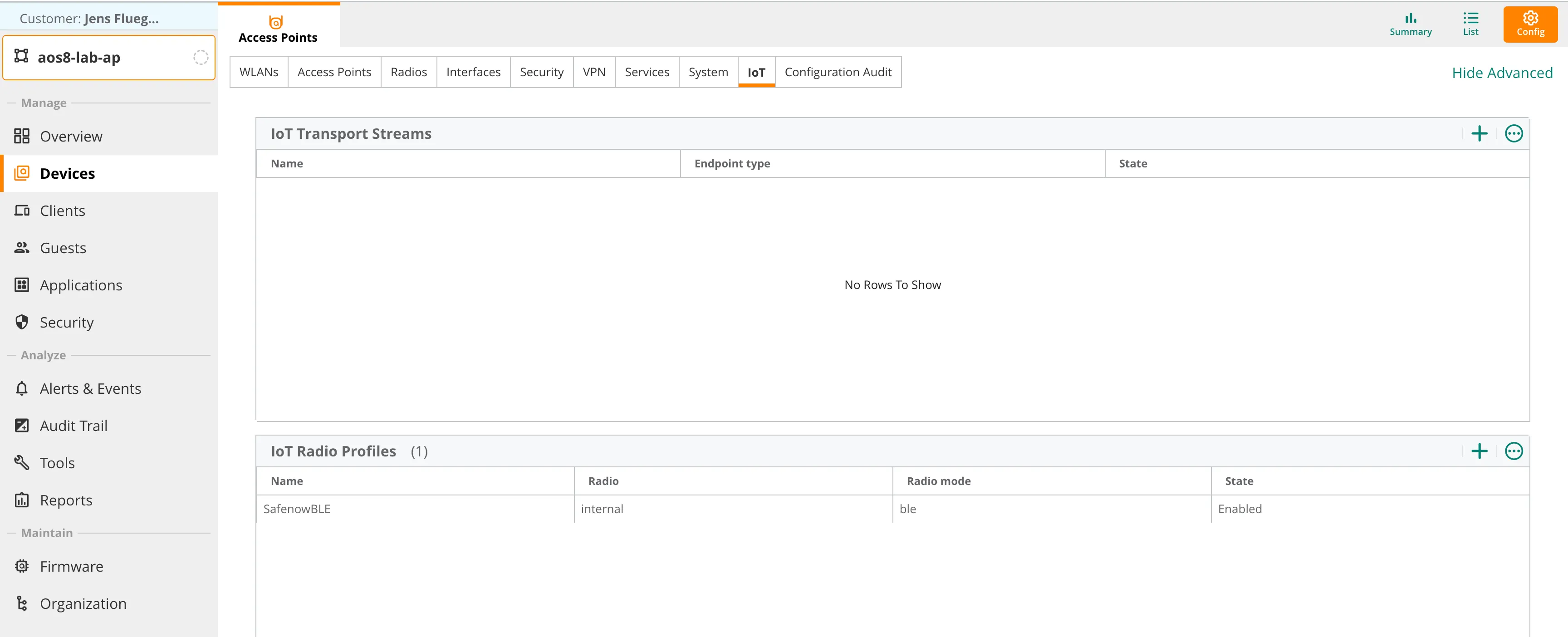
- Add a new IoT radio configuration or change an existing one to enable the BLE mode of the HPE Aruba Networking AP's IoT radio:
- a. Click on the + icon in the top right of the IoT Radio Profiles table
- b. Enter a profile name
- c. Set the Radio to Internal
- d. Set the Radio mode to BLE
- e. Set the BLE operation mode to Both
- f. Set the BLE console mode to the desired state.
- g. Set the Tx power to desired value, default is 0. This setting is only relevant when using BLE advertisements sent by the AP.
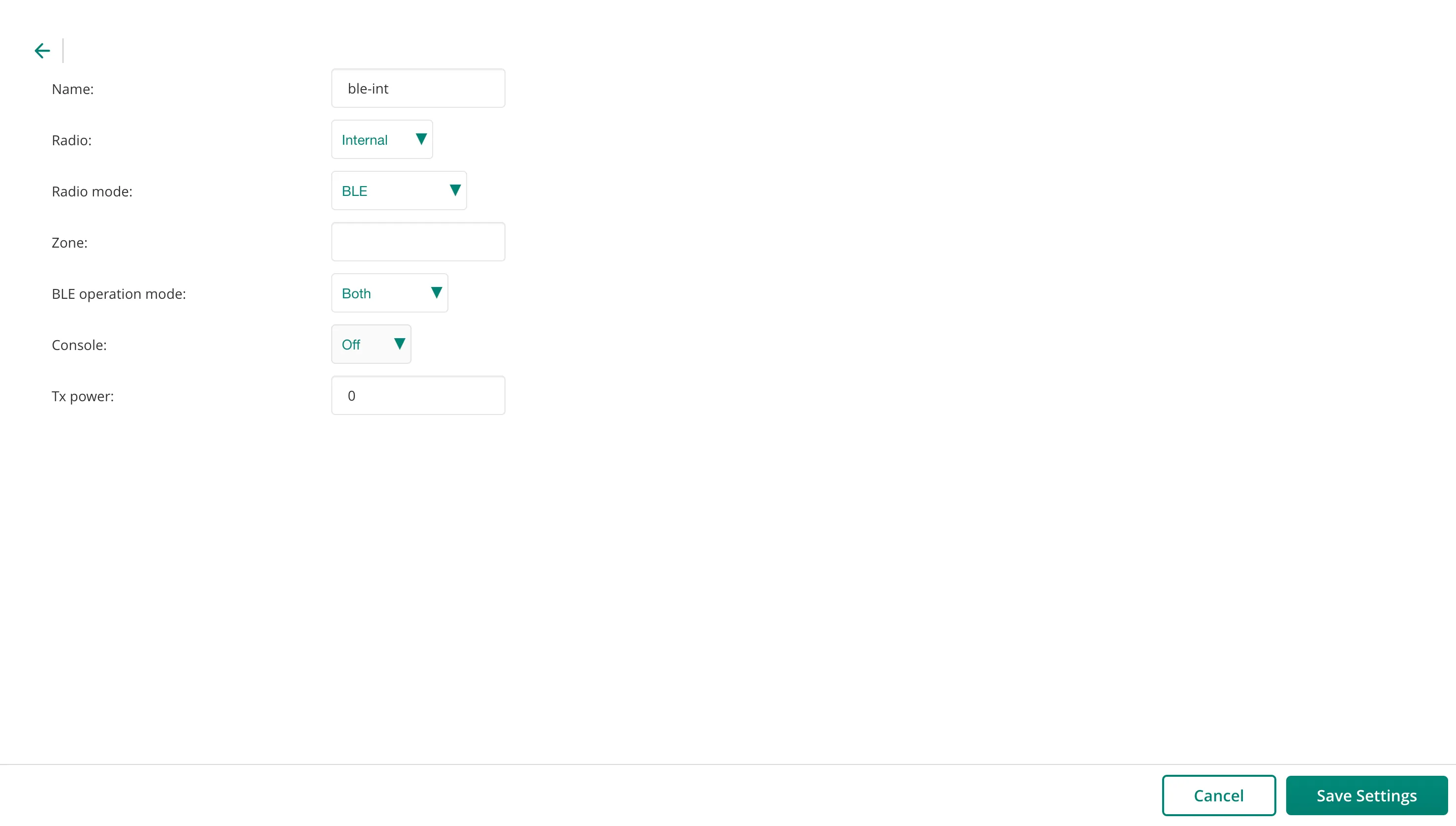
- h. Click Save Settings to close the IoT radio profile dialog
- Add a new IoT transport profile to configure the connectivity to the HYPROS solution backend:
- a. Click on the + icon in the top right corner of the IoT Transport Streams table
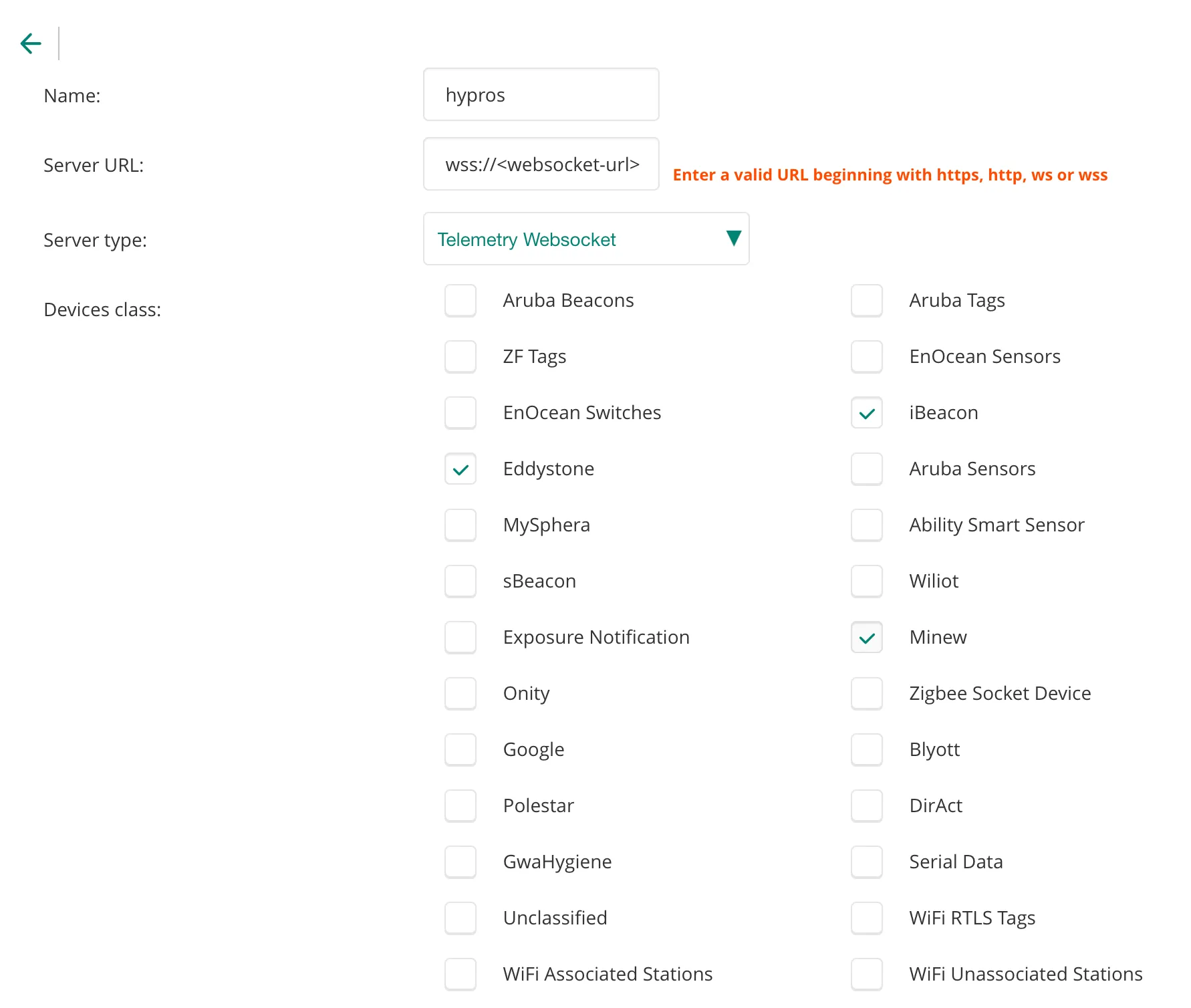
- b. Enter a profile name
- c. Enter <serverURL> as the Server URL
- d. Set the Server type to Telemetry WebSocket
- e. Check Eddystone, iBeacon and Minew as Devices class
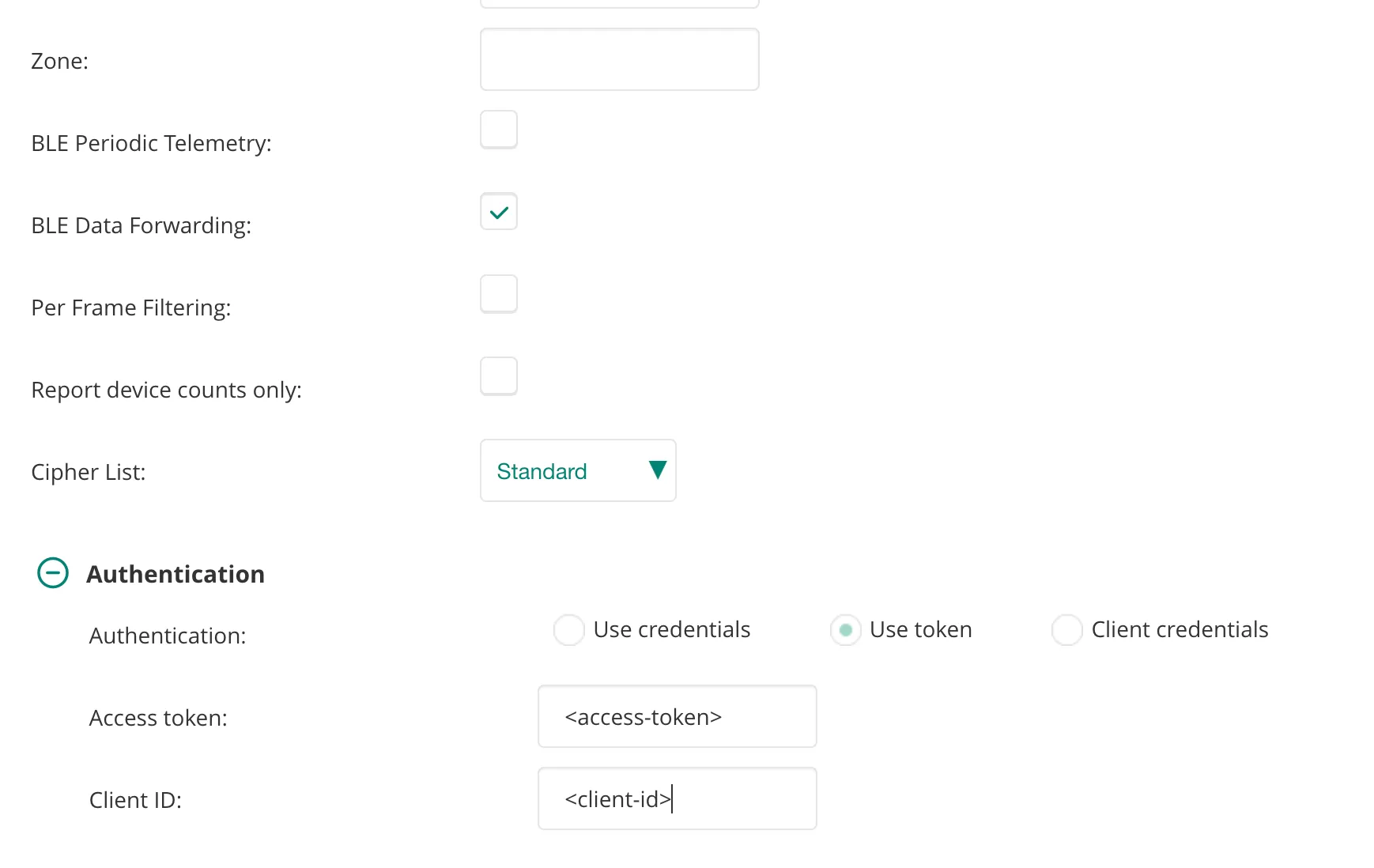
- f. Disable BLE Periodic Telemetry
- g. Enable BLE Data Forwarding
- h. Set Authentication to Use token
- i. Enter <access-token> as the Access token
- j. Enter <client-id> as the Client ID
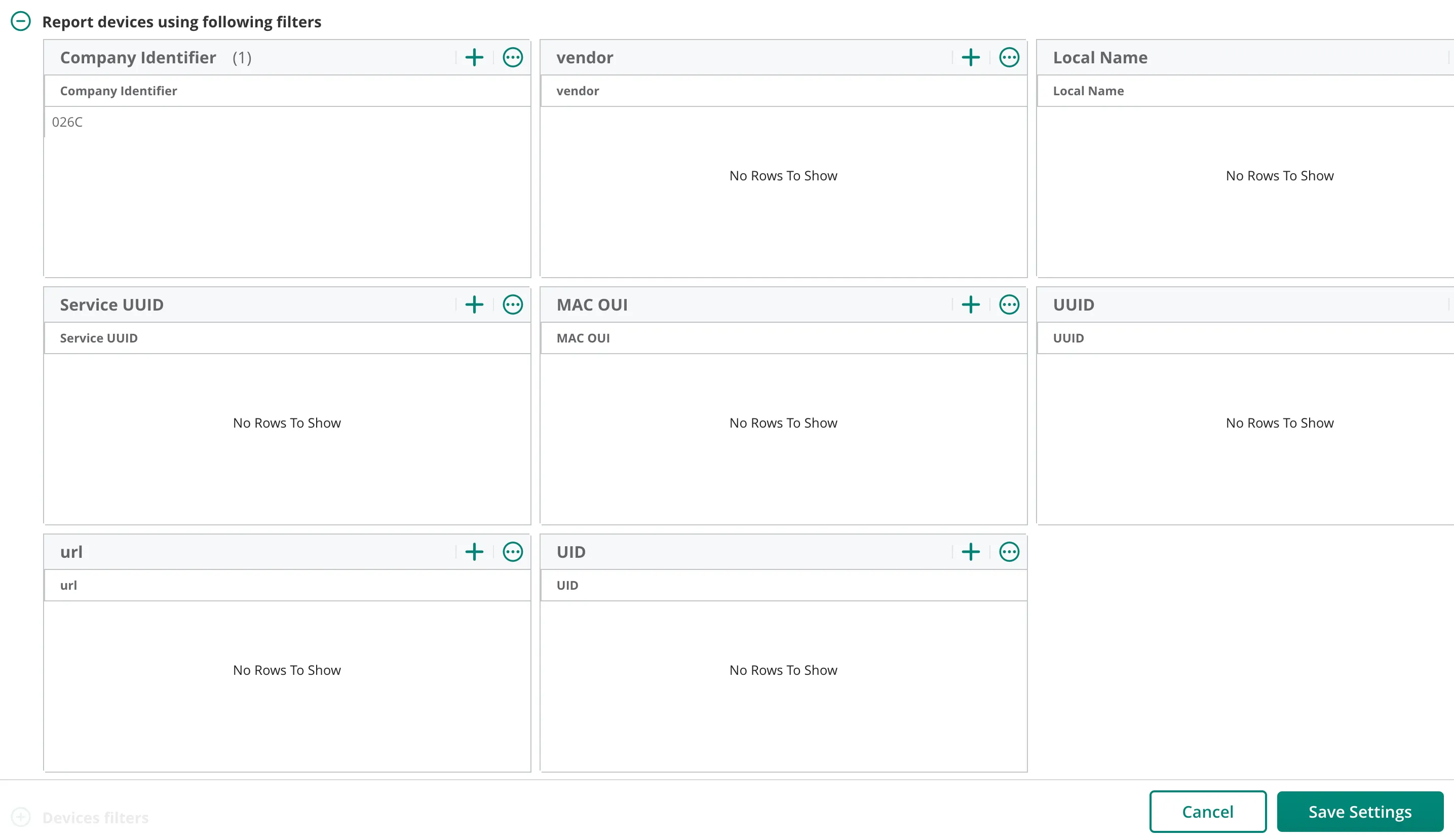
- k. Add 026C as a Company Identifier Filter
- l. Click Save Settings to close the IoT transport stream dialog